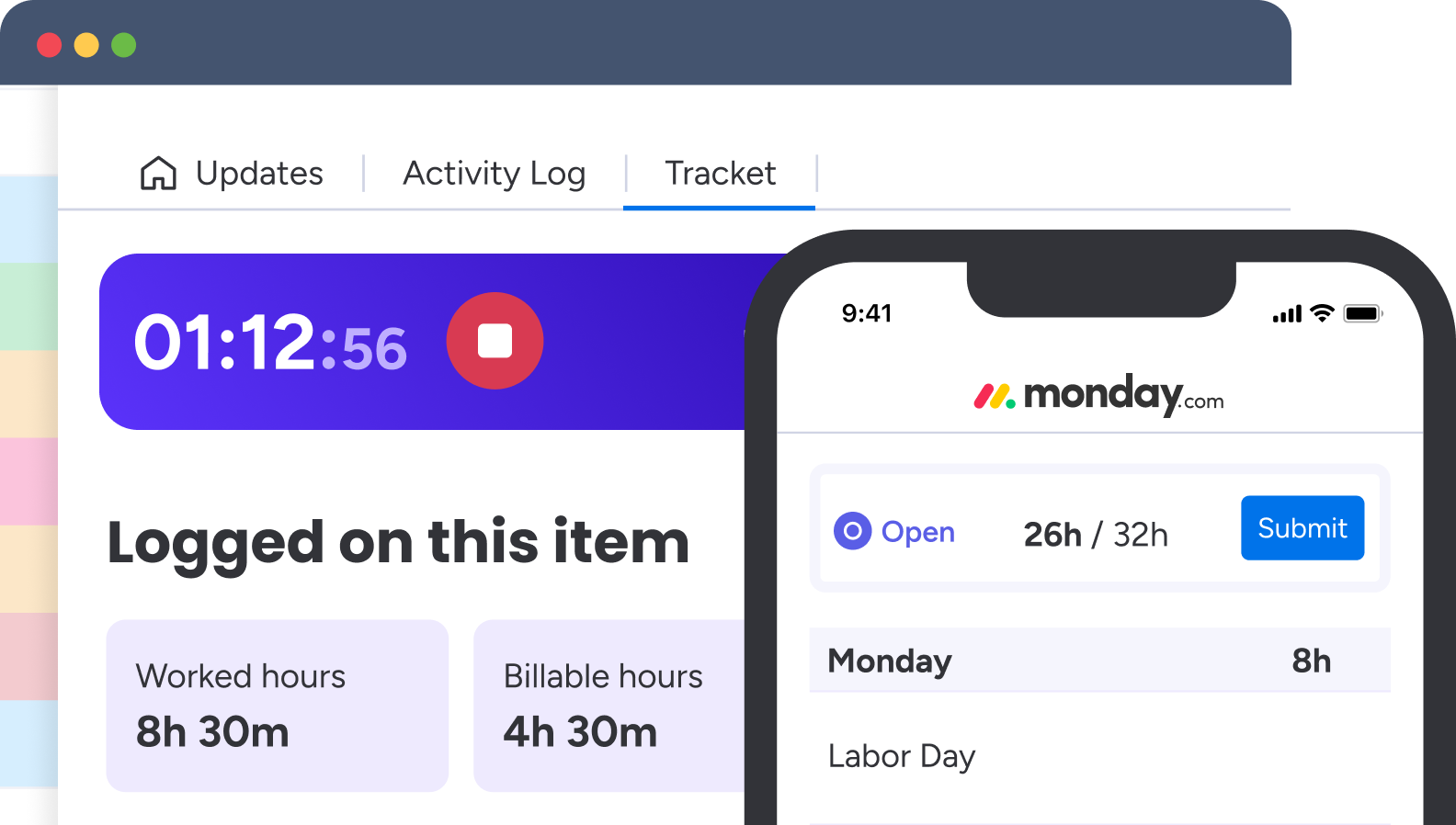
Jaimy Heijstee
Product Marketing Manager


Yes, monday.com can track time. For straightforward task-level tracking, monday.com's native Time Tracking Column lets people start a timer, add sessions manually, inspect a session log, calculate totals and export data, It is available on monday.com's Pro and Enterprise plans.
When time records need to become controlled timesheets, with approvals, billable and non-billable hours, required fields, cross-workspace reporting, capacity, access rules, audit history, or API access, a dedicated monday.com app such as Tracket is the more complete option.
This guide explains both approaches, including how to set them up, where each one fits, and how to build a time tracking process people will actually follow.
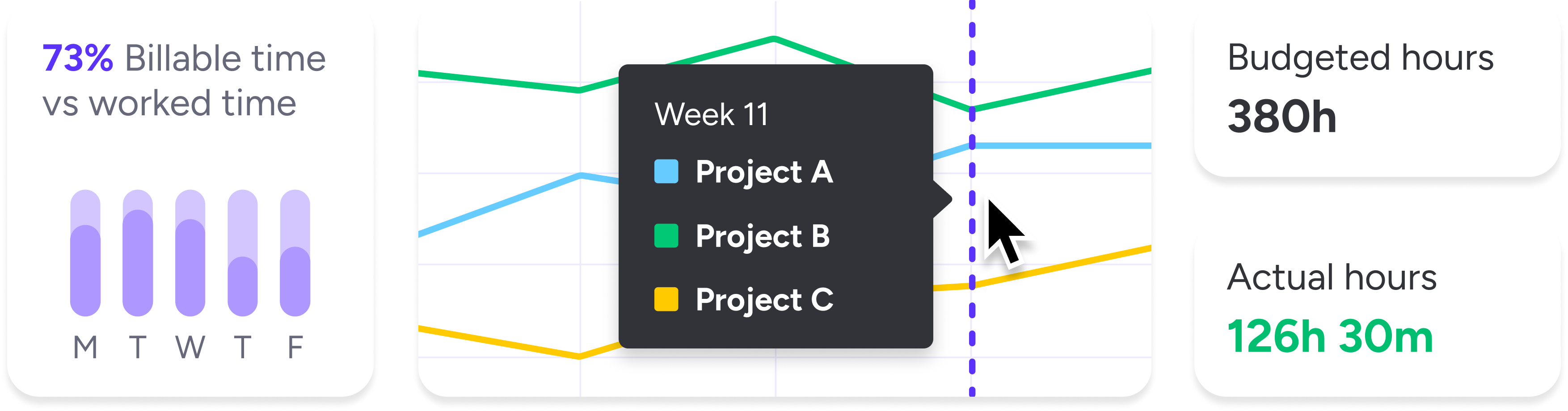
Time tracking in monday.com means recording how long people spend on monday.com items or subitems and then using that data for decisions such as:
There are two distinct ways to do this:
These are not interchangeable databases. Tracket records its own time entries linked to monday.com items and subitems. If you use Tracket and want totals visible in ordinary monday.com columns, Tracket can write those totals to text or number columns through its board integrations. Decide which system is your source of truth before rolling time tracking out to a team.
The native Time Tracking Column is the fastest way to add a timer to an existing board. According to monday.com's current documentation, it is available on Pro and Enterprise plans.
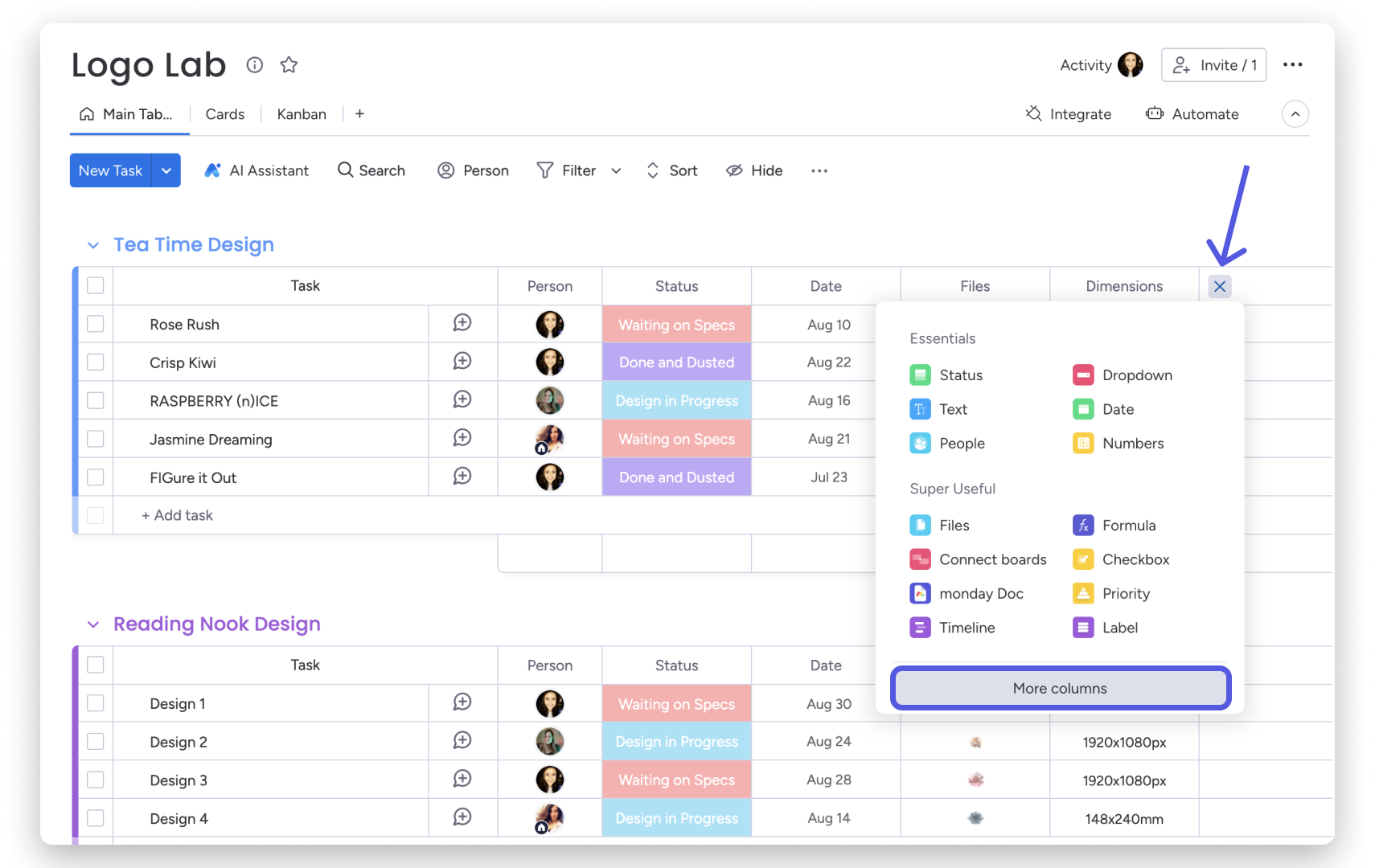
Add it to the level where work actually happens. If team members work on subitems, add a Time Tracking Column to the subitems rather than asking them to log everything on the parent item.
There are two native entry methods.
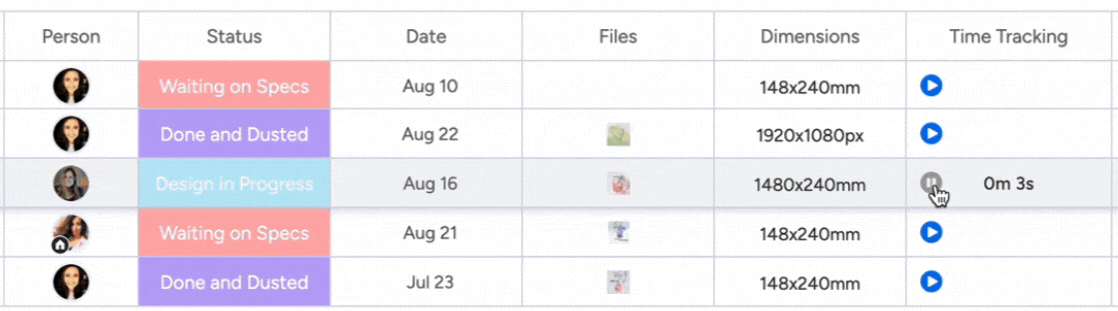
Select the play button in a Time Tracking cell when work starts. Pause it when the work stops. You can start it again later; the cell retains the separate sessions and displays the accumulated duration.
Open the Time Tracking cell and select Add session manually. Enter the date and time range for work that has already happened. monday.com does not allow a manual session in the future.
Manual entry matters even in a timer-first process. Meetings, calls, travel, field work, and forgotten timers are easier to correct after the fact than to reconstruct at the end of the month.
Select a Time Tracking cell to open its history. Each interval can be edited, and an entry can be removed by hovering over it and selecting the X. monday.com marks edited time values in red, while timer activity is also available in the item's Activity Log.
That history is useful for corrections, but a correction workflow is not the same as a formal timesheet approval process. If submitted hours need to be locked, reviewed, approved, or rejected, skip ahead to the Tracket workflow.
The column displays seconds by default. Open the column menu, choose Column settings, and turn off Show seconds if minutes are a better fit for the team.
The choice is visual; it does not replace a logging policy. A team should still agree on whether it records exact time or rounds to a defined interval.
Track time at the lowest level that represents meaningful work, but do not record the same work twice.
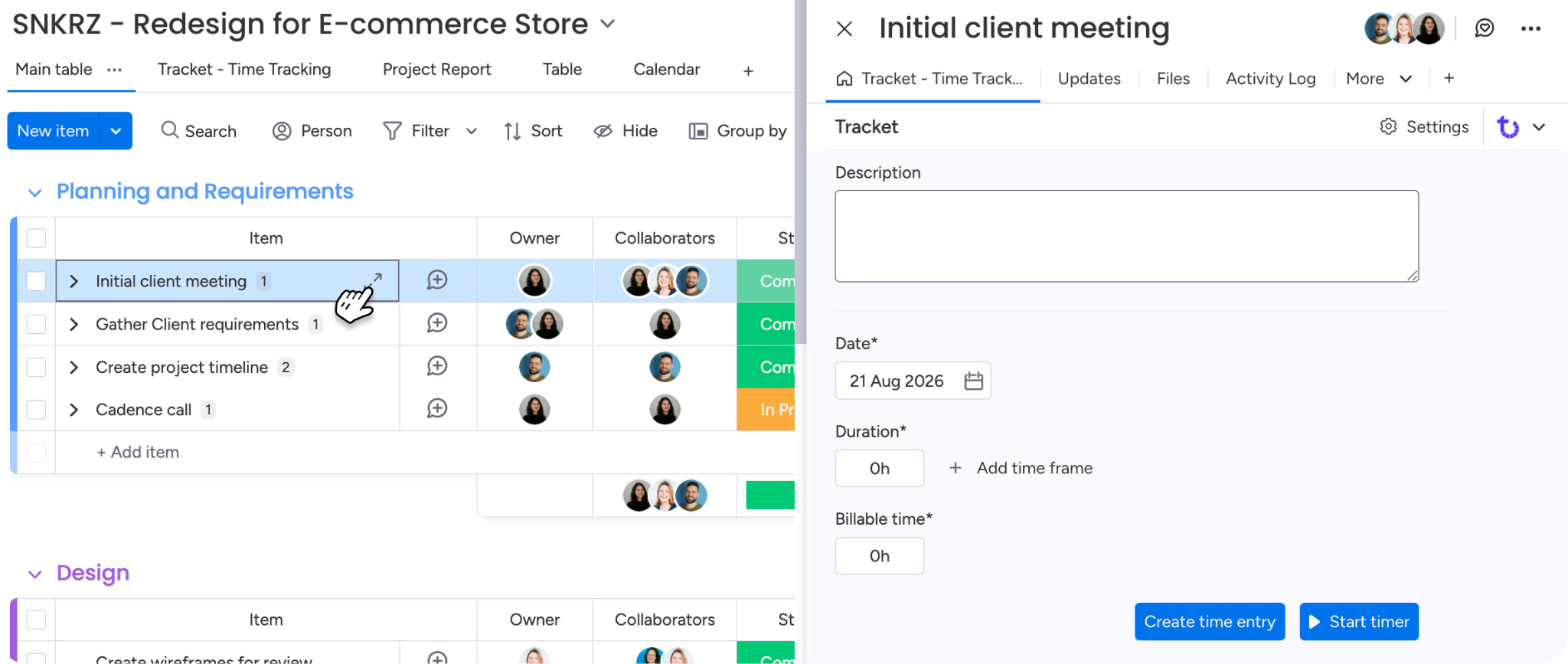
For example:
monday.com can display the total time from subitems on the parent. Open the subitem Time Tracking Column settings and choose Show Summary on Parent Item.
One caveat: the native Time Tracking Widget currently sums item time, not subitem time directly. monday.com documents a workaround that brings the subitem summary to the parent and uses a Formula Column for a combined total. Test this on a sample board before standardizing it across templates.
A useful board separates planning, execution, and financial data:
Keep the number of classification columns small. Every required choice creates friction, and inconsistent categories produce worse reports than a shorter, well-defined taxonomy.
monday.com exposes units from the Time Tracking Column to Formula Columns. If the column is named Time Tracking, the documented hours formula is:
{Time Tracking#Hours}
To round the result to two decimals:
ROUND({Time Tracking#Hours},2)
If the board also has an Hourly Rate column, monday.com documents this example for calculating a charge from tracked hours:
ROUND(MULTIPLY({Time Tracking#Hours},{Hourly Rate}),0)
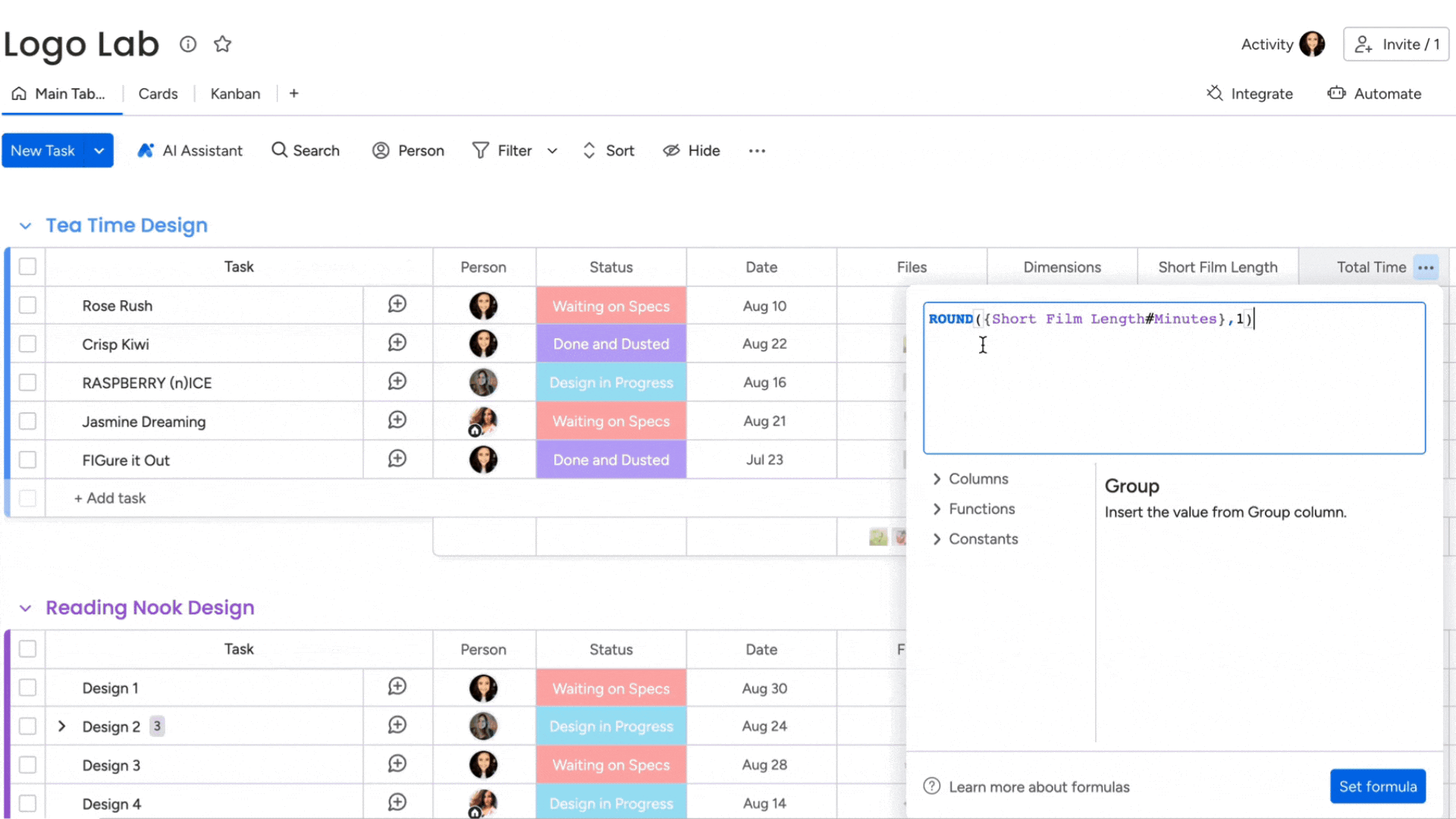
Treat this as a simple cost calculation, not a complete billing system. It applies one rate to the item's tracked hours; it does not by itself classify individual sessions as billable or non-billable, submit them for approval, or freeze an invoiced period.
Also remember that a running native timer is not committed continuously. A Formula Column updates after the session is paused or stopped.
Native reporting has three useful layers.
Use Formula Columns and group summaries when the question is local to one board: total hours by project group, task, client, or sprint.
The column menu can export the entire Time Tracking Column to Excel. The export includes item names, the people who recorded the sessions, and totals at item and board level. A single item's log can also be exported from its Time Tracking window.
For a narrower export, save a board filter for the relevant items or groups and export that filtered data.
The native Time Tracking Widget summarizes Time Tracking Column data on a dashboard or board view. In the current dashboard configuration, it can connect up to five boards.
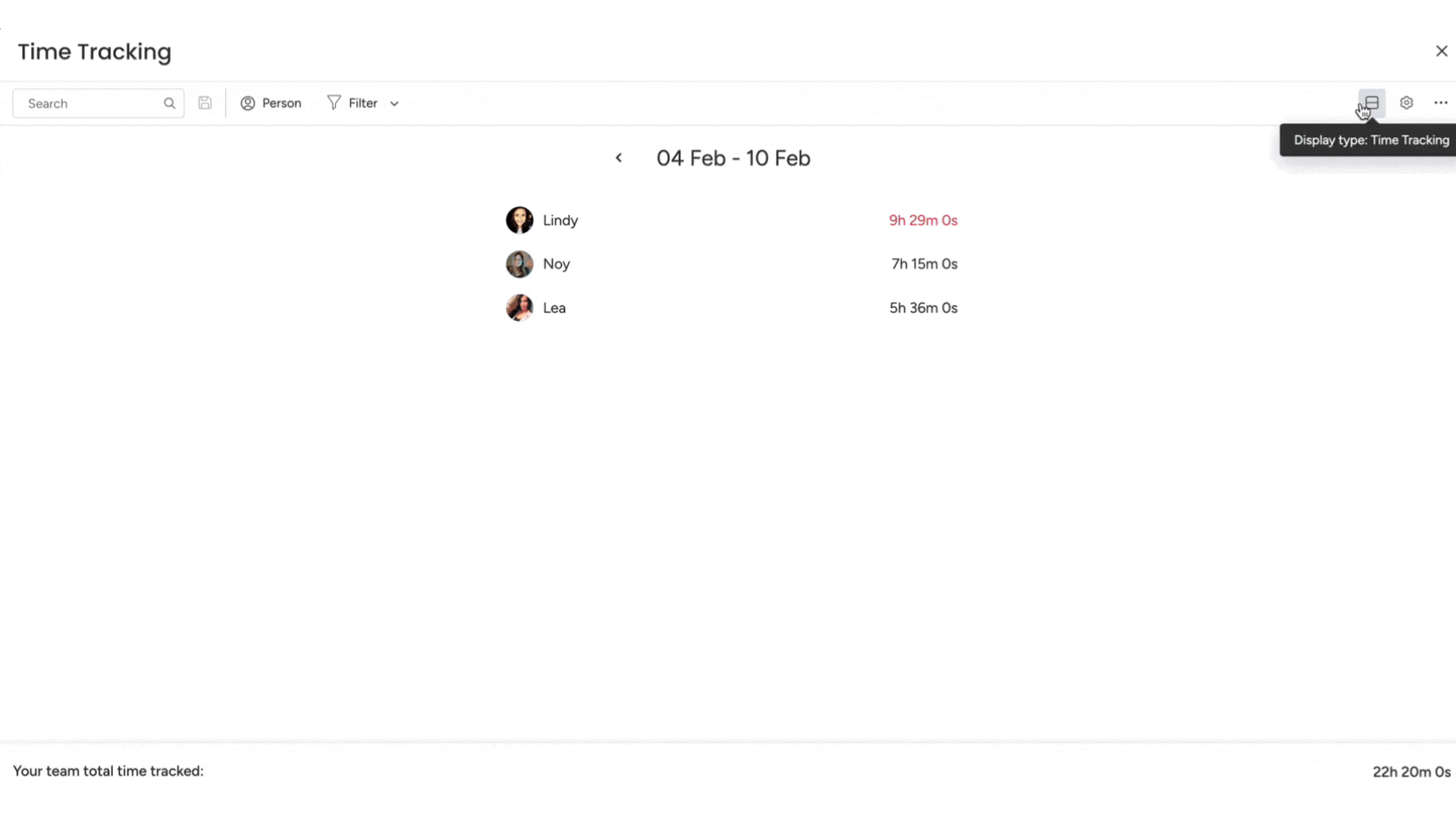
The widget can:
Grouping by an assignee People Column and grouping by the person who logged a session answer different questions. The first shows time attached to work assigned to a person. The second shows who actually recorded the work. Choose deliberately, especially when several people collaborate on the same item.
The native feature is strong for straightforward task measurement, but plan for these boundaries:
If several of these limits affect the same process, a dedicated time-tracking app will usually be easier to operate than additional boards and formulas.
Tracket is a time-tracking app built for monday.com. A Tracket time entry is linked to a monday.com item and can include the board, item, team, date, duration, optional start and end time, billable time, description, and custom fields.
The distinction is important: an item answers what work is being done; a structured time entry answers who did it, when, for how long, for which team or category, and how much of it can be billed.
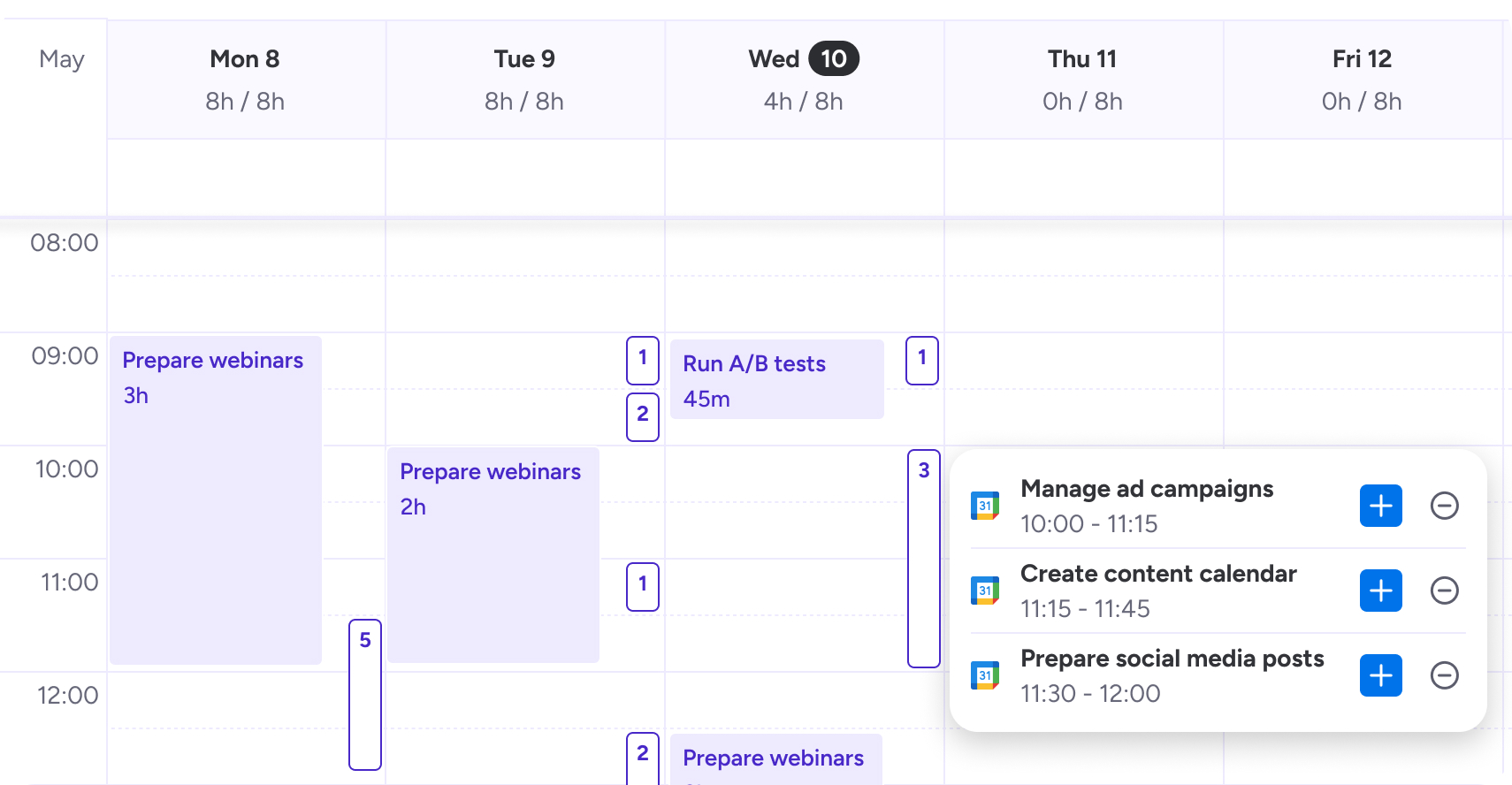
Tracket supports classic boards and monday.com's multi-level boards. Its item selector can log against an item at any level.
Tracket adds an operational layer around time data:
Installation must be started by a monday.com administrator:
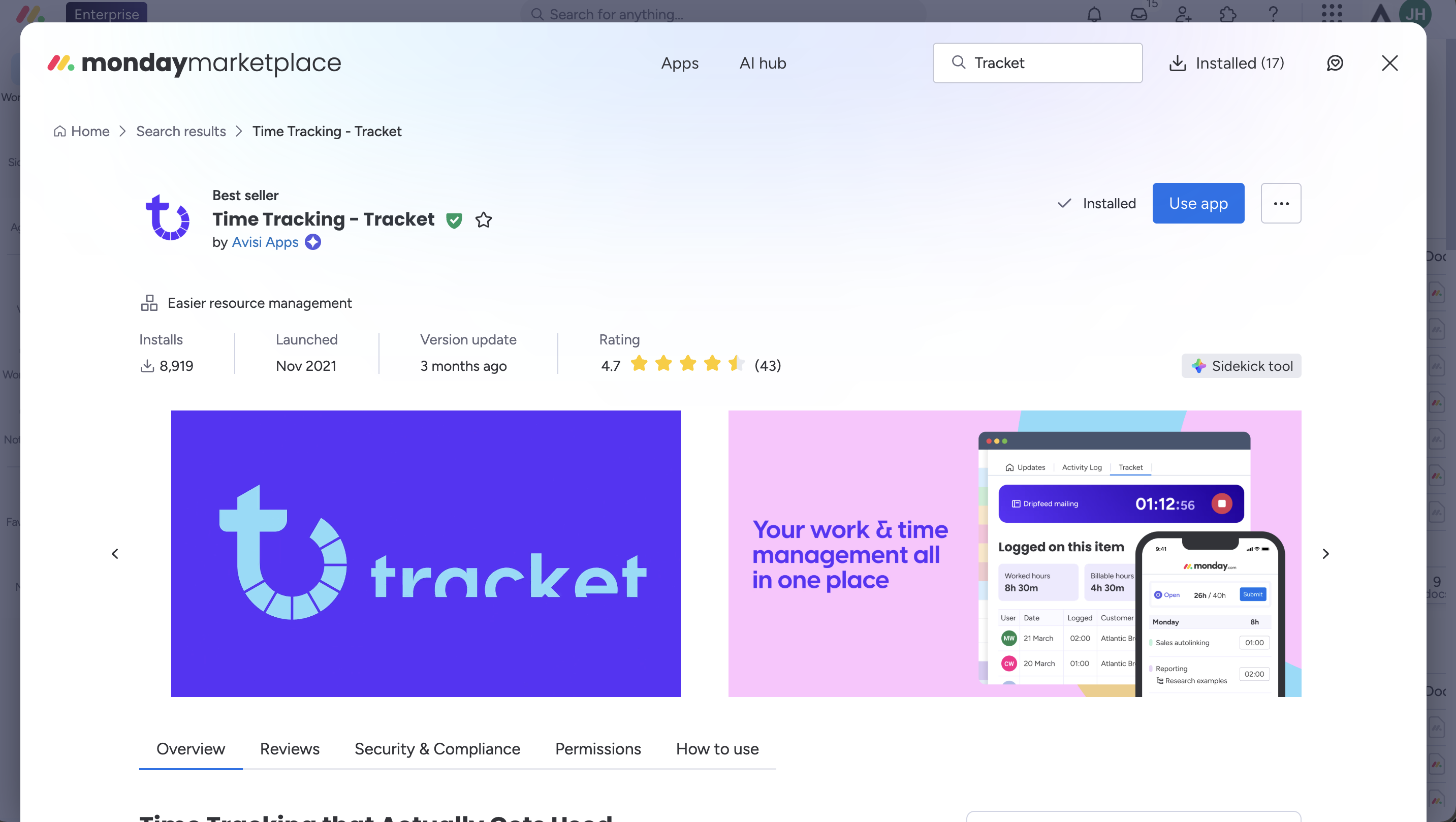
Before inviting the full team, make five decisions.
Use either native Time Tracking or Tracket as the official record for a workflow. Do not ask people to log the same work twice. If Tracket is authoritative but totals need to appear on boards, use a Tracket integration to write total or billable time to a monday.com number column.
Board, item, date, and time are always required. Team, description, billable time, and up to six custom fields can be configured. A practical services setup might add team, activity, billing category, and a description for client-facing or exception work. Require a field only when a recurring decision or report depends on it.
Useful dimensions include activity, contract code, billing phase, department, or funding source. Avoid duplicating information already represented by the board or item, and restrict options by team only when it prevents genuine errors.
Logging can be limited by board access, board selection, subscriptions, or item assignment. Regular members work with their own entries; Tracket team admins can manage their teams; monday.com admins can manage account-wide entries. Users must also have access to the underlying board and item. monday.com Viewers cannot use Tracket because they lack the required API permissions.
Access and licensing are separate. Pricing is based on the billed monday.com account size, so check the current pricing table before rollout.
Set the work-week start, company schedule, necessary personal schedules, holiday schedules, and assignments.
Tracket can enforce an account-wide interval of 1, 5, 6, 10, 15, or 30 minutes and round up, down, or to the nearest interval. Because rounding changes payable or billable records, document the rule and have the appropriate HR, finance, or legal owner review it.
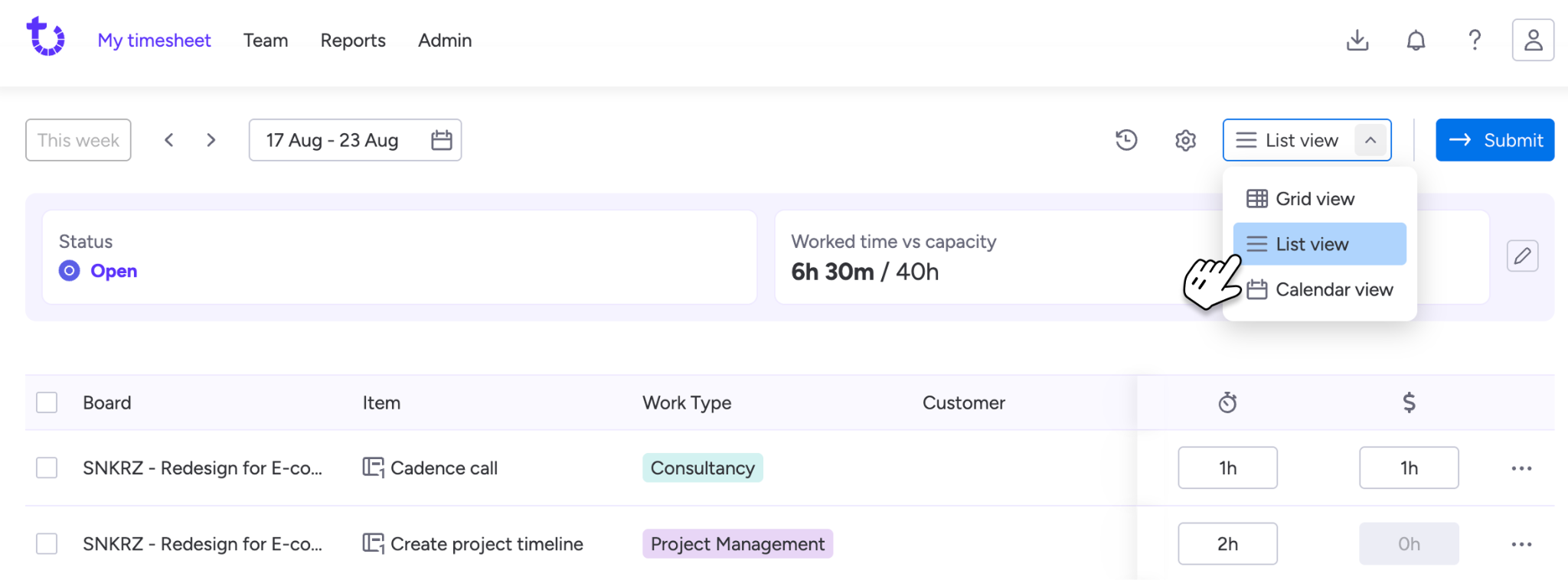
Choose the shortest accurate method for the work:
A single Tracket time entry is capped at 24 hours, so forgotten timers still need correction. A practical policy can allow both timer and manual entry instead of forcing one method onto every type of work.
Billable time and worked time are not always equal.
An eight-hour day may contain six client-billable hours, one internal meeting, and one hour of administration. A project may also bill a fixed amount even though the team records actual effort for profitability analysis.
The native Time Tracking Column can feed a formula that multiplies total hours by an hourly rate. This works when all tracked time on the item is treated the same way.
For mixed billing, you need additional structure, for example, separate items, groups, or boards for billable and non-billable work. That can become hard to maintain when one person records both types against the same task.
Tracket stores regular time and billable time as separate values in a time entry. A billable time field becomes available when the entry includes at least one custom-field option marked as billable. Billable time cannot exceed total worked time.
This supports questions such as:
For reliable invoicing, approve the period before exporting it and retain a consistent correction process for already approved time.
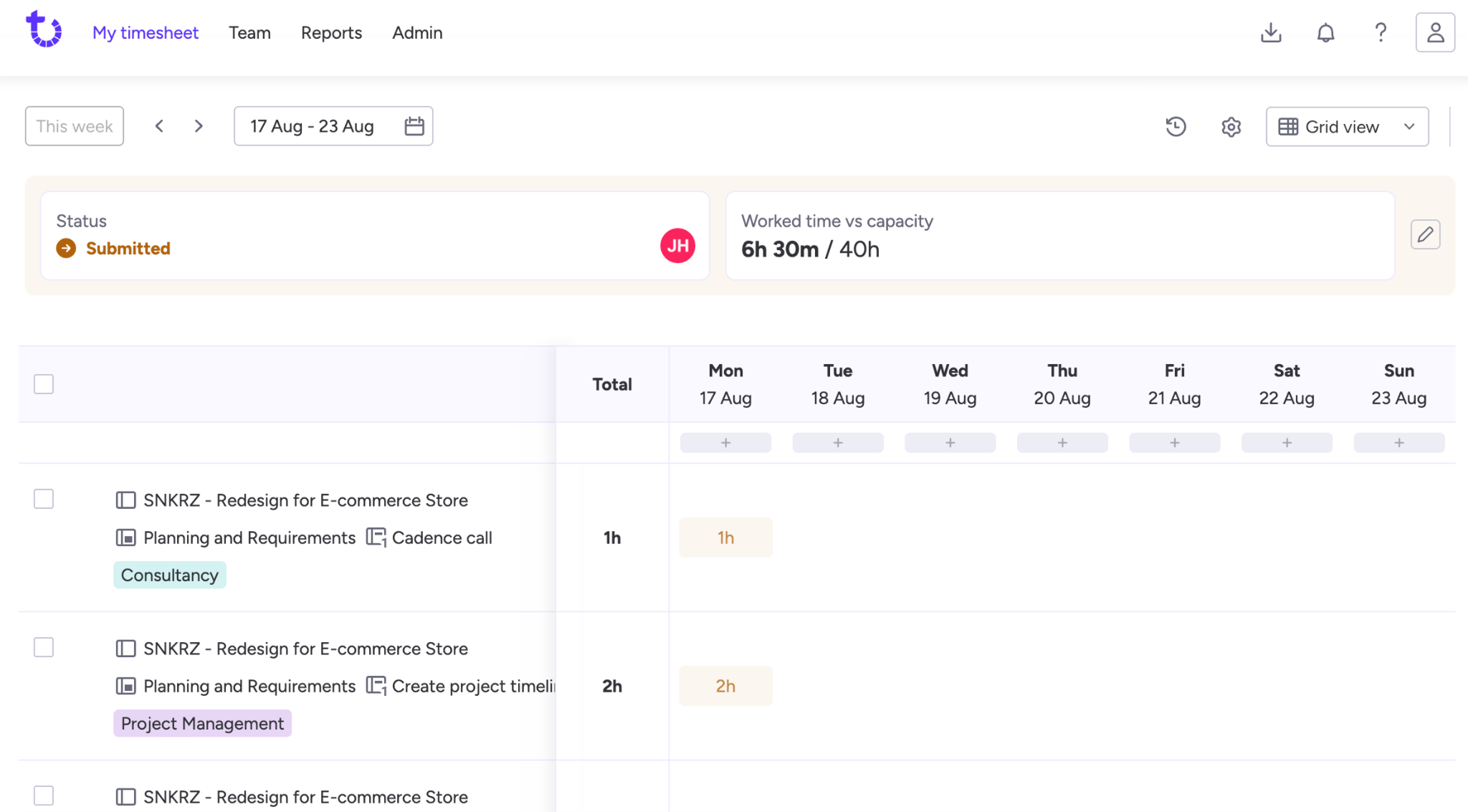
Approvals turn personal records into controlled business data. Tracket uses four main statuses:
monday.com admins can review submitted timesheets account-wide. Tracket team admins can review timesheets for teams they administer.
Document the deadline, reviewer, checks, and post-approval correction route before rollout.
Start with the decision the report should support.
Use board summaries, Formula Columns, exports, and the Time Tracking Widget for questions such as total time by board or group, session owner, estimate variance, or a simple cost calculated from one hourly rate.
Tracket reports can apply saved filters and group entries by up to three layers—for example team → board → person or client category → project → activity. Reports support day, week, month, quarter, annual or custom periods. Aggregate results can be exported to Excel, CSV, or a monday.com board.
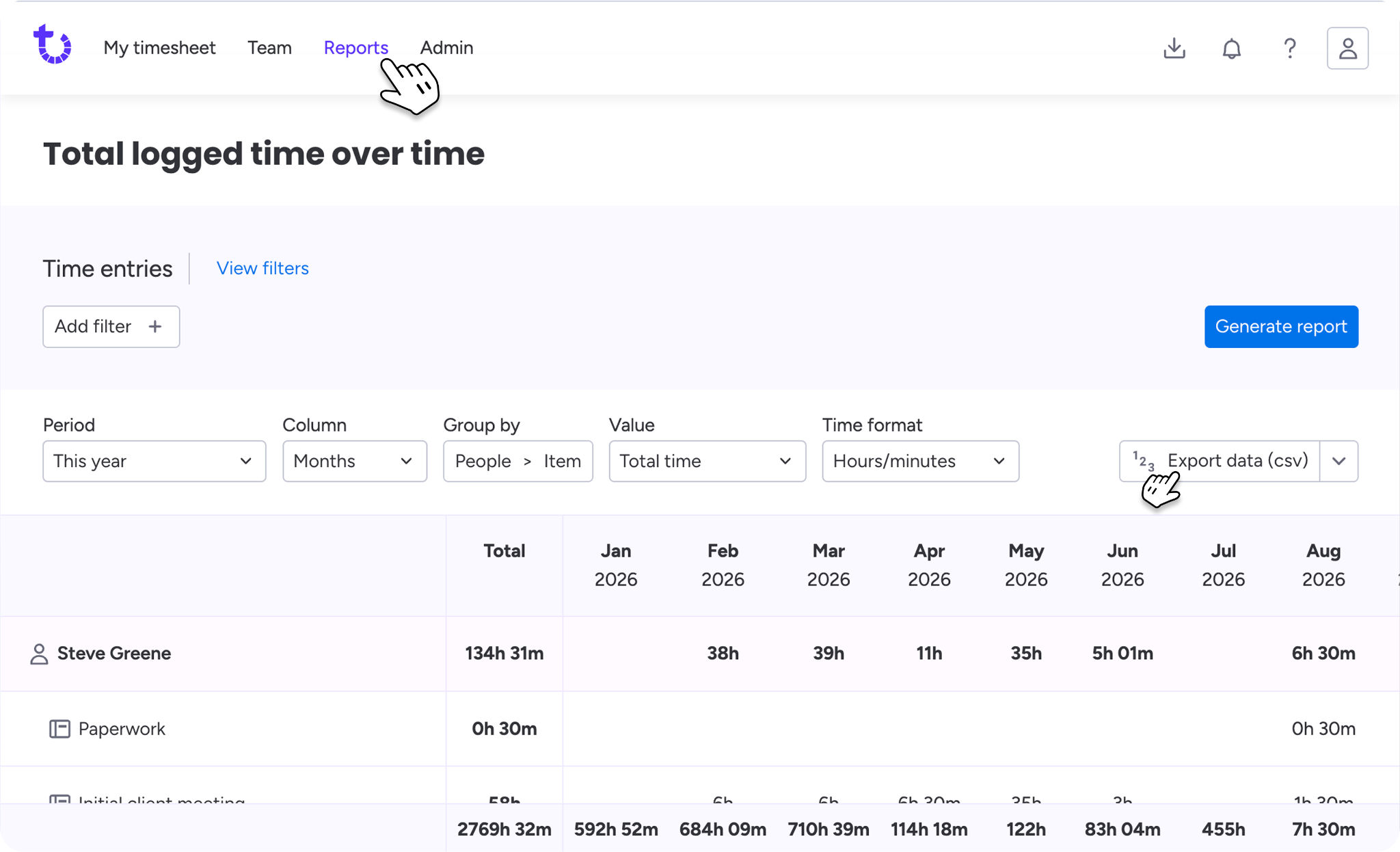
Tracket line and bar widgets can show time or billable time, use fixed or rolling ranges, and add a benchmark. Anyone with access to the monday.com dashboard can see the data shared by the widget creator, so treat dashboard design as a permissions decision as well as a reporting decision. Tracket widgets are not supported in a shareable view.
Start with a small set of consistent metrics:
Define each denominator in writing. “Utilization,” for example, may mean billable hours divided by capacity in one company and productive hours divided by worked hours in another. A shared name with different formulas is worse than two clearly named metrics.
Prefer totals when stakeholders only need current progress beside the work. Row-level synchronization is more appropriate when another process genuinely acts on each entry.
Tracket is available through the monday.com mobile app. Its mobile board view can display a compact personal timesheet and lets a user create, edit, or delete complete entries and submit a timesheet. Existing dashboard charts can be viewed on mobile.
There are legitimate mixed setups. One department might use the native column for lightweight project learning while a services team uses Tracket for billable work. Or Tracket may be the official source while an integration publishes totals to normal board columns.
What should not happen is duplicate logging. Write down:
State the decision time data will support better estimates, defensible invoices, allocation analysis, or another concrete outcome. Avoid vague goals such as “more visibility.”
Choose the logging level, required fields, category definitions, billable rule, rounding rule, deadline, reviewer, exception process, and source of truth.
Test normal work, two people on one item, a forgotten timer, a manual correction, billable and non-billable time, subitems, approval rejection and resubmission, and the real export or dashboard the business needs.
Give users a one-page policy, a few realistic examples, and a named support contact. Demonstrate the preferred logging route in the monday.com view they already use.
Look for missing submissions, confusing categories, recurring corrections, unused reports, access problems, or duplicated dimensions. Remove friction before adding controls.
Purpose
We record time to [state the business purpose]. Time data will be used for [specific decisions or outputs] and will not be used for [state relevant boundary].
What to record
Record work against the lowest meaningful monday.com item or subitem. Do not record the same work on both a parent and child item.
When to record it
Record time [on the same day / by the end of the next working day]. Use a timer for focused task work and manual entry when reconstructing meetings or other completed work.
Required information
Every entry must include [fields]. Add a description when [rule].
Billable time
Mark time billable only when [contract or policy rule]. Billable time may not exceed worked time.
Rounding
Time is recorded in [exact minutes / interval] and rounded [rule].
Submission and approval
Submit each [week / month] by [deadline]. [Role] reviews the period for [checks]. Rejected timesheets must be corrected and resubmitted by [deadline].
Corrections
Before approval, correct the entry directly. After approval, ask [role] to reopen the period and record the reason for the change.
Questions
Contact [owner or channel] for access, category, or correction questions.
Pause or stop the native timer. monday.com commits the session only then, after which formulas and duration-based automations can use it.
The Time Tracking Column cannot be mapped in create-or-move-item automations. Keep the authoritative item in place, export first, or use a different reporting architecture.
Check app access, board restrictions, subscribed-board rules, assigned-item restrictions, and the user's access to the underlying monday.com board and item.
Confirm the user can see at least one option. Team restrictions can otherwise leave a required field impossible to complete.
Review the monday.com dashboard audience. People with dashboard access can view the result shared by the widget creator.
Yes. On Pro and Enterprise plans, the Time Tracking Column supports timers, manual sessions, editable history, formulas, Excel exports, and the Time Tracking Widget.
Open a board, select the + beside the columns, choose More columns, and add Time Tracking. Add it to subitems too when that is where actionable work happens.
The native column can multiply total tracked hours by a rate. Tracket stores worked and billable time separately on eligible entries, which is better when only part of the work is billable.
The native column records task sessions but does not provide a formal submit-review-approve-lock workflow. Tracket adds weekly timesheets, approval statuses, rejection, reopening, and locking.
Yes. Native tracking can be added to subitems, although widget reporting may require a parent summary workaround and currently connects up to five boards. Tracket supports item hierarchies and reporting across boards and workspaces in the same account.
No. Tracket creates separate structured entries linked to monday.com items. Its integrations can publish total or billable time to ordinary monday.com columns when the board needs those totals.
Yes. Native data exports to Excel. Tracket exports aggregate reports to Excel, detailed entries to CSV, individual entries to a monday.com board, and data through its REST API.
Yes. The mobile board view supports a compact timesheet, complete entries, and submission; existing dashboard charts can be viewed. Test the exact workflow because the mobile item view is still documented as a work in progress.
Pricing uses seat buckets aligned with the billed monday.com account size; consult the current pricing table. Eligible first-time installations currently receive a 14-day trial with all features.
The right monday.com time-tracking setup is the smallest system that supports a real decision.
If you only need to understand task duration, the native Time Tracking Column may be all you need. Configure it at the right item level, add a clear estimate, and build one report people will use.
If time must pass through timesheets, approvals, billing categories, capacity, audit, and downstream reporting, use a system designed for that workflow. Tracket keeps those records connected to the monday.com work without turning every board into a hand-built timesheet database.
Ready to make time work? Start an eligible 14-day free trial of Tracket, or schedule a demo to discuss your monday.com time-tracking workflow.


Avisi Apps B.V.
Nieuwe Stationsstraat 10
6811 KS Arnhem
KvK: 76632490
BTW: NL860713659B01


.svg)
.svg)


We use cookies on our website to enhance your browsing experience. Some of them are essential, others are optional. Because we respect your right to privacy, you can choose not to allow personalized cookies. Learn more
Functional cookies