Jaimy Heijstee
Product Marketing Manager


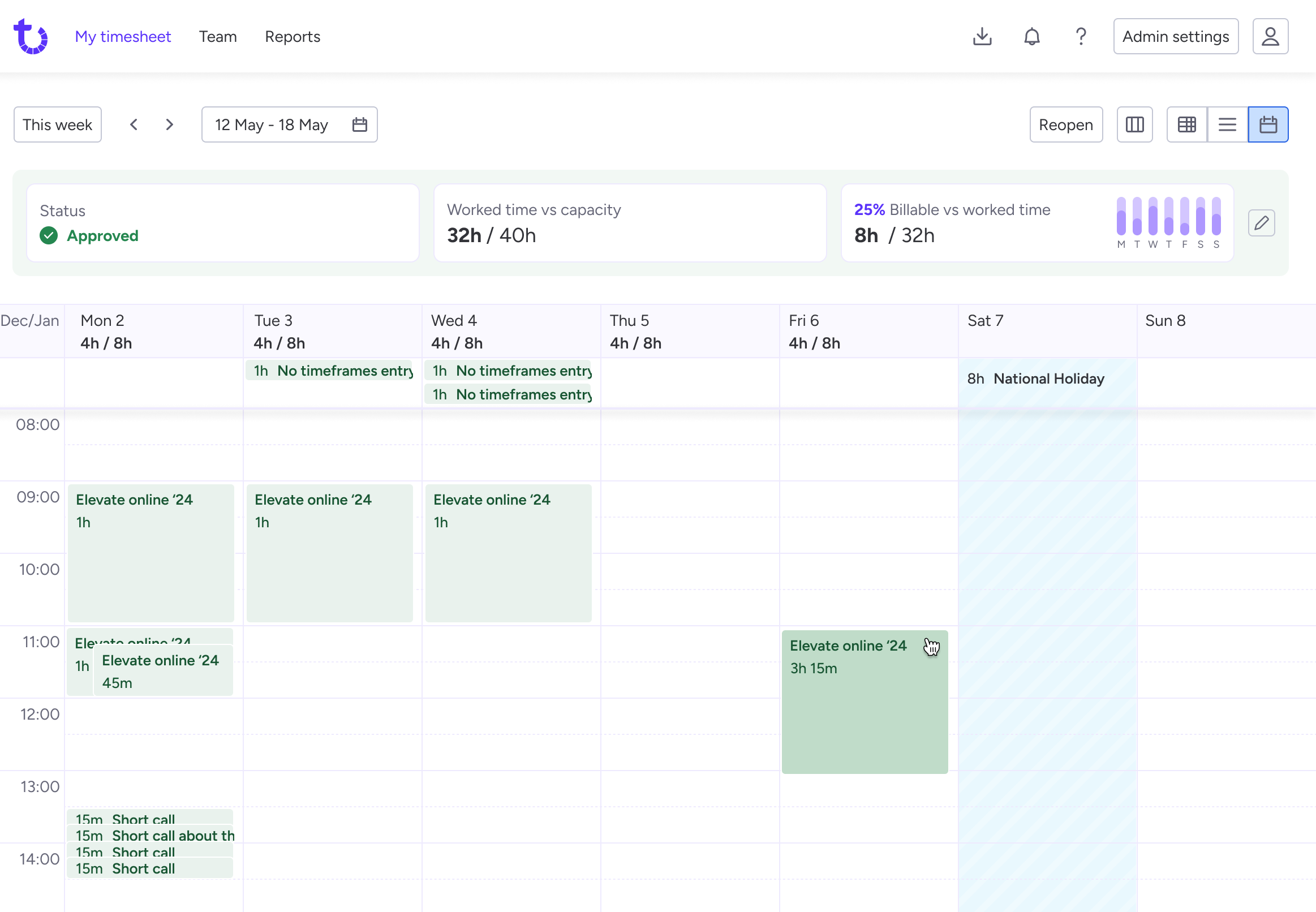
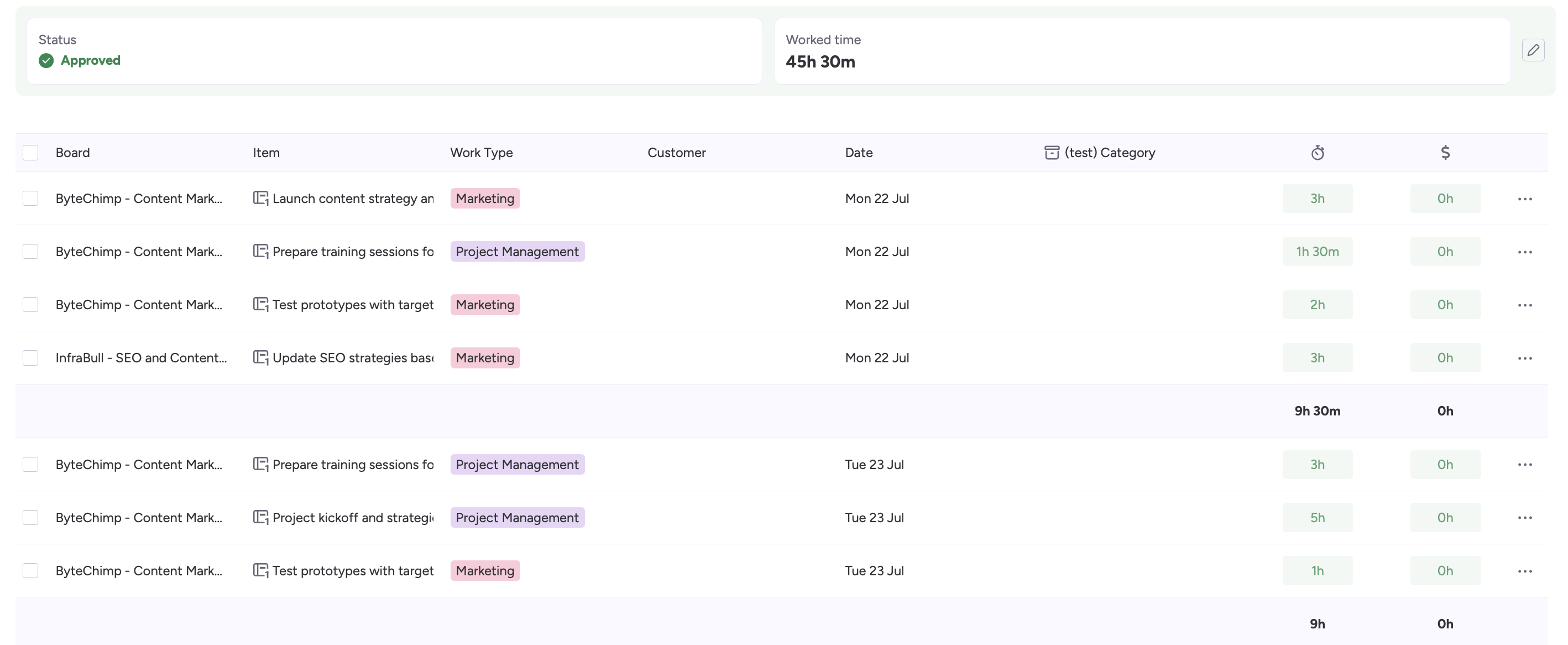
Here's how to do timesheets in monday.com: use Tracket to have employees record work against monday.com items, submit their timesheets, and let authorized admins review the hours. Submission locks the timesheet until it is reopened or rejected.Tracket approvals overview.
Logging hours is only the first step. Before sending them to finance, you need to know whether the week is complete, the work is assigned to the right projects, and any mistakes have been corrected.
This guide covers setup, submission, review, corrections, and export, with a weekly routine you can adapt.
monday.com's native Time Tracking Column records time against tasks. Available on Pro and Enterprise plans, it supports timers, manual sessions, manually editable time entries, and Excel exports. It can be useful when you need to measure task duration. Native Time Tracking documentation.
A timesheet brings a person's work together for a period, so a reviewer can check whether it is complete and ready to approve.
The native column itself does not provide the submission and period-locking workflow described here. You could design a process using boards and permissions, but an “Approved” status should not be assumed to lock the underlying time records.
Tracket provides grid, list, and calendar timesheets with entries linked to monday.com items. This article uses that dedicated workflow. Tracket logging documentation.
Start with one team. Decide what a reviewer needs to check before adding fields or controls.
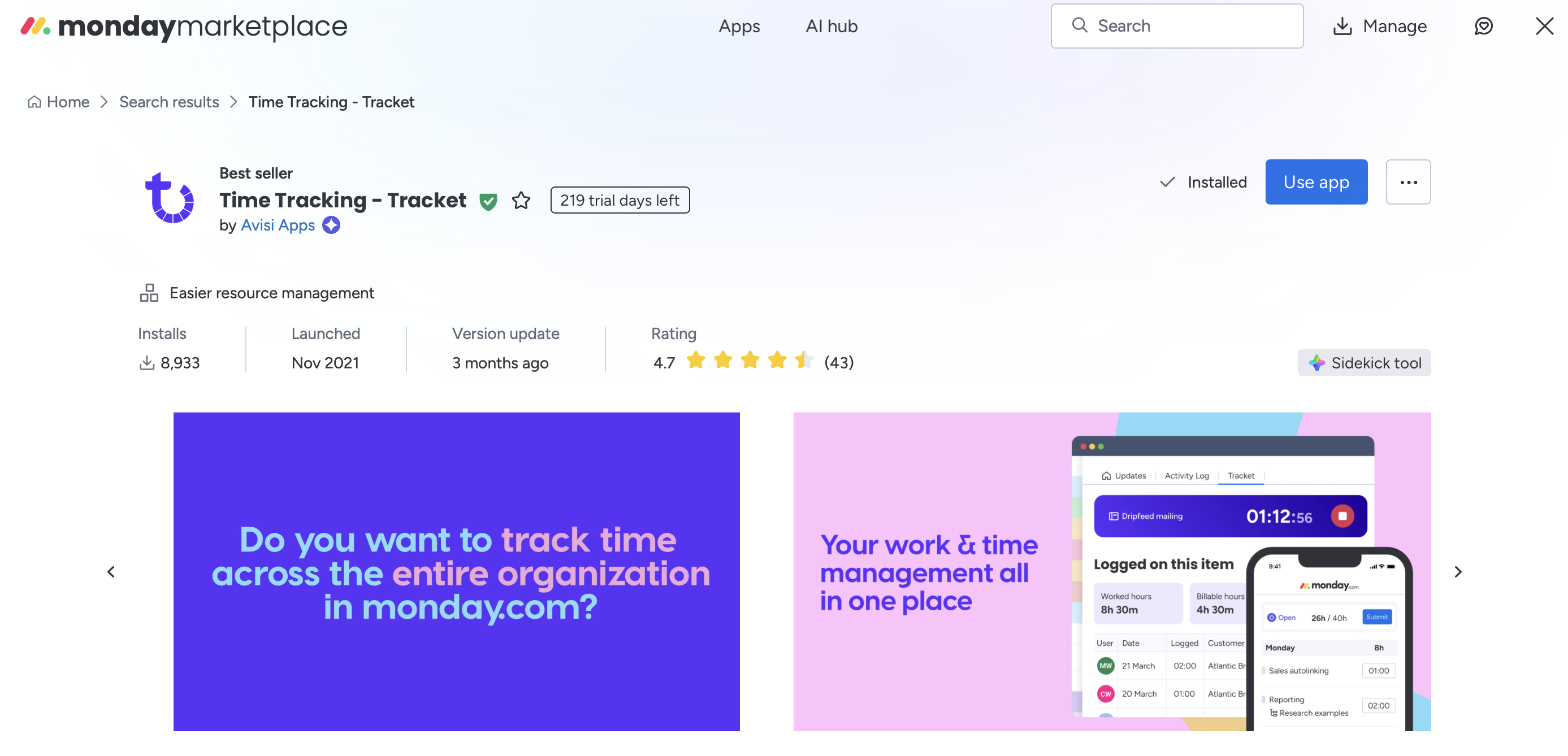
Open the Tracket Marketplace listing and follow the installation flow. Add its board view for timesheets, settings, and approvals. Alternatively, the custom object makes the same functionality accessible from the workspace navigation. Installation instructions.
Choose one official place for recording time. Asking employees to enter the same work in both Tracket and the native column, or external tool like Everhour creates two records to reconcile whenever somebody makes a correction.
A monday.com admin can configure the Time Entry Template under App settings → Time management. Board, item, date, and time are always required; descriptions and custom fields can be configured to suit your process. Time Entry Template.
For a services team, a useful starting point is:
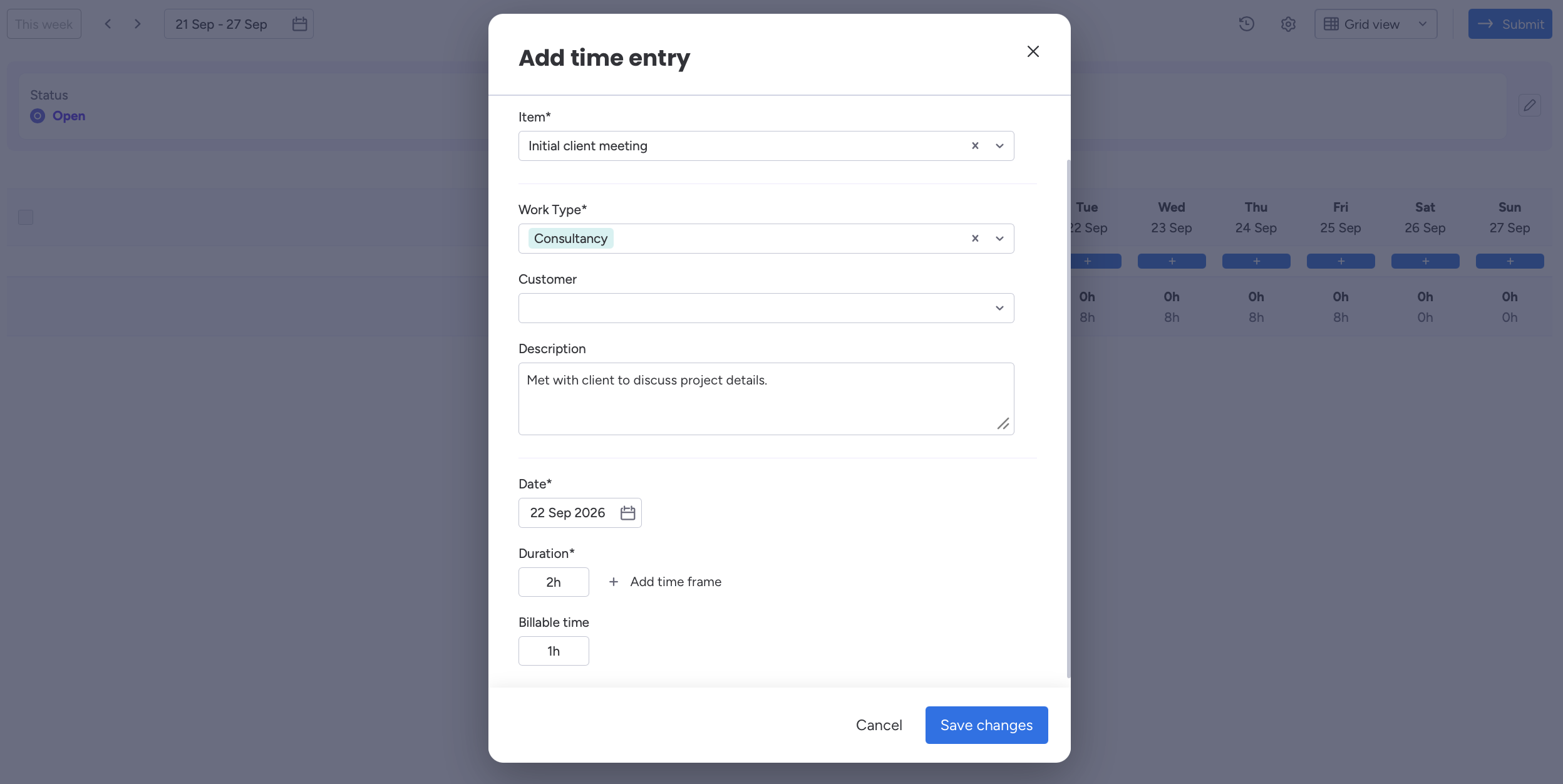
For example, “Client website review: checked revised navigation and documented changes” gives a reviewer more useful context than “Website.” Keep it brief, but make the work clear.
Only require categories you use. If nobody reports on location, leave it out.
Tracket records worked time and billable time separately. The billable field is available when an entry includes a custom-field option marked as billable, and billable time cannot exceed worked time. Billable-time rules.
For example, a consultant might work eight hours, with six eligible for client billing. The remaining two hours still belong in the timesheet. Your contract and internal rules determine which work is billable; approval should check that classification.
Configure capacity before using it to identify missing hours. Tracket uses working schedules and holiday schedules, including personal working patterns where configured. Comparing a part-time employee against a standard full-time week creates misleading exceptions. Capacity documentation.
Assign reviewer permissions deliberately. Being a monday.com team owner does not automatically make someone a Tracket team admin. These are separate roles. Team-management documentation.

To configure a Tracket team admin, a monday.com admin can:
Repeat this for the teams they should manage. Team-admin setup.
Timesheets are not sent to one assigned approver. Eligible monday.com admins and Tracket team admins with access to the relevant team can review them, making sure that absence does not interrupt approvals. Current approval model.
Even with shared access, name a primary reviewer and backup in your internal process. Otherwise, each manager may assume somebody else is clearing the queue.
Approvals are enabled by default. Review the controls under App settings → Time management → Controlling:
If you disable self-approval, make sure another eligible reviewer is available. Approval controls.
Ask employees to record work regularly and check the following before submitting:
The check matters more than hitting an arbitrary total. A timesheet can add up to forty hours and still allocate those hours to the wrong client.
To submit in Tracket:
Open and rejected timesheets can be submitted. If a user needs to revise a submitted timesheet, they can select Reopen when their settings allow it; otherwise, they need an authorized admin's help. Submission instructions.
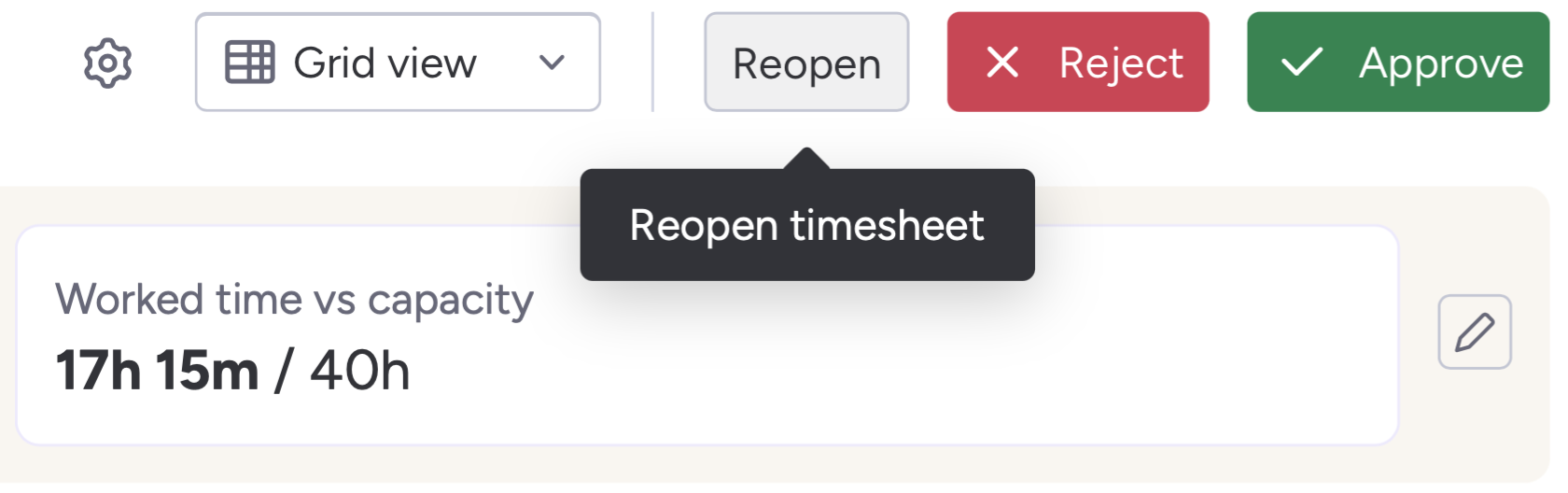
In Tracket, open Team → Approvals, filter by status, team, and period, and select View on the relevant timesheet. You can also review through Team → Timesheets.
Choose Approve when the record is ready. To return it, select Reject, explain the correction, and confirm. For a submitted or approved timesheet that needs reopening, use the row's ⋮ menu → Reopen timesheet.
For a backlog, Pending Approvals presents submitted timesheets in submission order and loads the next after approval or rejection. Timesheet history records who performed each status change and when. Review instructions.
Ask the employee about exceptions. The cause might be missing work, an unclear category, or an incorrect schedule.
When returning a timesheet, make the requested action specific. “Please review Wednesday's four-hour support entry: this work belongs to the internal support project” is actionable. “Incorrect timesheet” creates another conversation before the employee can fix anything.
Locking controls the correction path; it does not make approved hours permanently unchangeable. Status definitions.
For a correction after finance has already used the data, require a reason and notify the person responsible for the export or invoice. They need to know whether an earlier output must be replaced. Treat that notification as part of your process, rather than assuming a timesheet change updates an external file.
Once review is complete, prepare a report with the intended date range and scope. In Reports, choose filters, select the period, configure grouping and the time format, then generate the report. Tracket supports up to three grouping levels. Report setup.
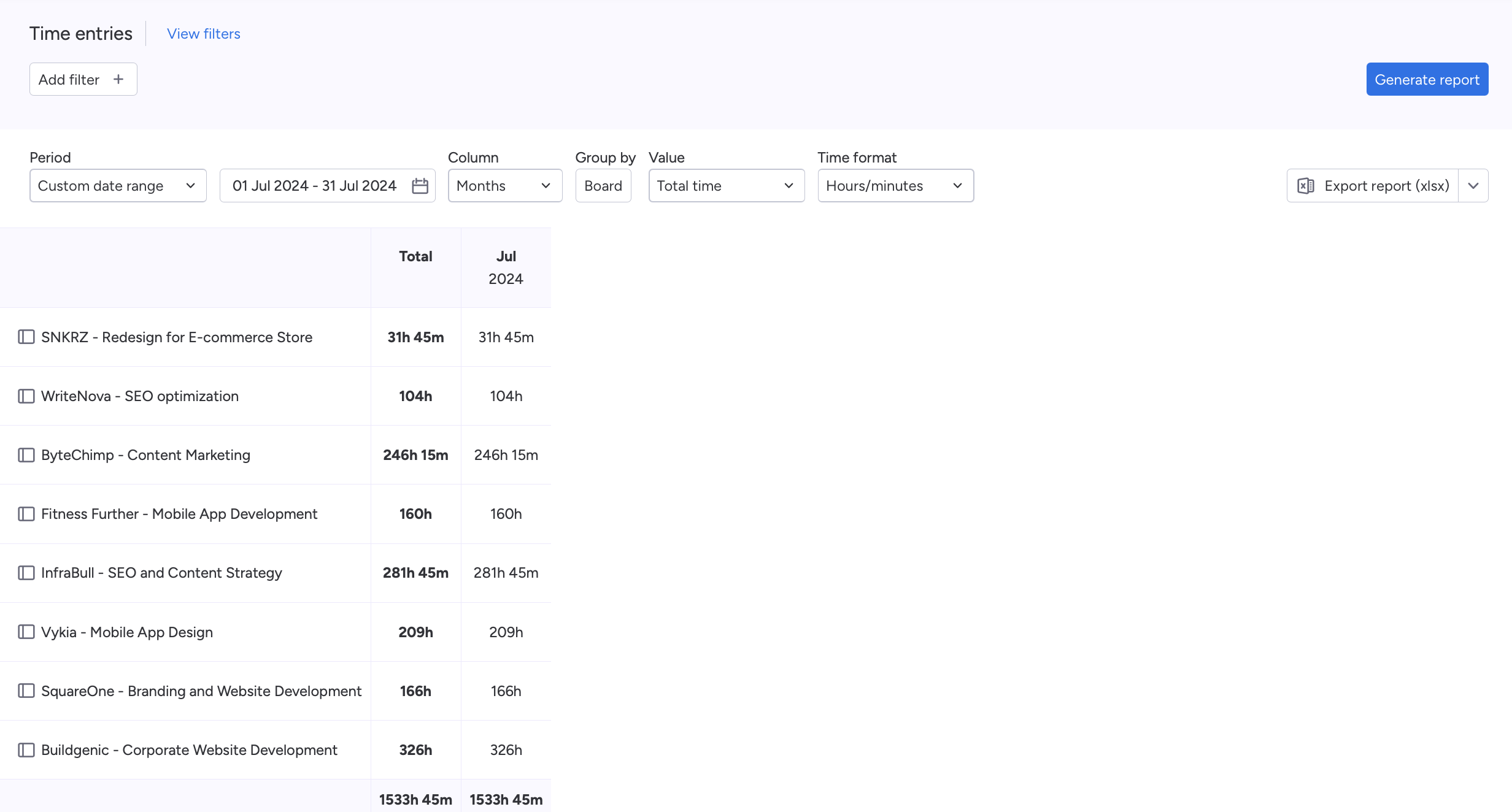
Save filters with clear names so you can reuse them for later periods. Report filters.
Choose the export that matches the handoff:
Before exporting, check that the report's people, dates, and totals match the reviewed scope. The export documentation does not establish that unapproved time is automatically excluded. Export documentation.
For billing, agree with finance which information they need: project reference, person, date, description, worked duration, and billable duration are useful starting points. Approving a timesheet does not set the contract rate or create an invoice.
For a team that reviews weekly, this schedule is a useful starting point. The deadlines are suggestions, not Tracket defaults.
During the week: Employees record work while the details are still fresh. Unclear categories go to a named owner before they become a week of inconsistent entries.
Monday morning: Employees check and submit the previous week. The reviewer checks who is missing and follows up.
Monday afternoon: The reviewer accepts complete timesheets and returns exceptions with a clear explanation.
Tuesday morning: Employees correct returned entries. The reviewer checks the corrections, and finance receives the agreed export once the required scope is ready.
If one timesheet is delayed, decide whether finance should wait or receive a clearly identified partial batch. An unexplained missing person is harder to catch than an explicitly documented exception.
Pilot the routine with one team. Test a correction and have the backup reviewer handle a submission before extending it.
Check their Tracket role and access to the relevant team. If they are reviewing their own hours, also check the self-approval setting. A managerial job title alone does not establish app permissions. Reviewer permissions, self-approval settings.
Yes. In Team → Approvals → Overview, find an open timesheet and use Send reminder from its menu. Reminders apply to open timesheets and cannot be sent to yourself. Email reminders are off by default. Reminder instructions.
No. Disabling the approval process does not remove existing approvals or unlock already locked timesheets. Use the appropriate reopening action for a correction. Approval settings documentation.
Start with the fields your team needs, a named reviewer and backup, and the checklist above. Run one reporting period through to export, resolve any problems, then expand to more teams.
Ready to put the workflow into practice? Explore Tracket in the monday.com Marketplace and pilot one reporting period with your team.


Avisi Apps B.V.
Nieuwe Stationsstraat 10
6811 KS Arnhem
KvK: 76632490
BTW: NL860713659B01


.svg)
.svg)


We use cookies on our website to enhance your browsing experience. Some of them are essential, others are optional. Because we respect your right to privacy, you can choose not to allow personalized cookies. Learn more
Functional cookies